01
Everyone hears your prompt
In an open office or a café, the people around you hear every word you say to the AI.
 Get the app
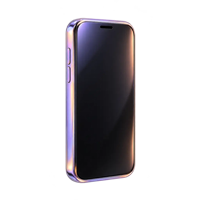
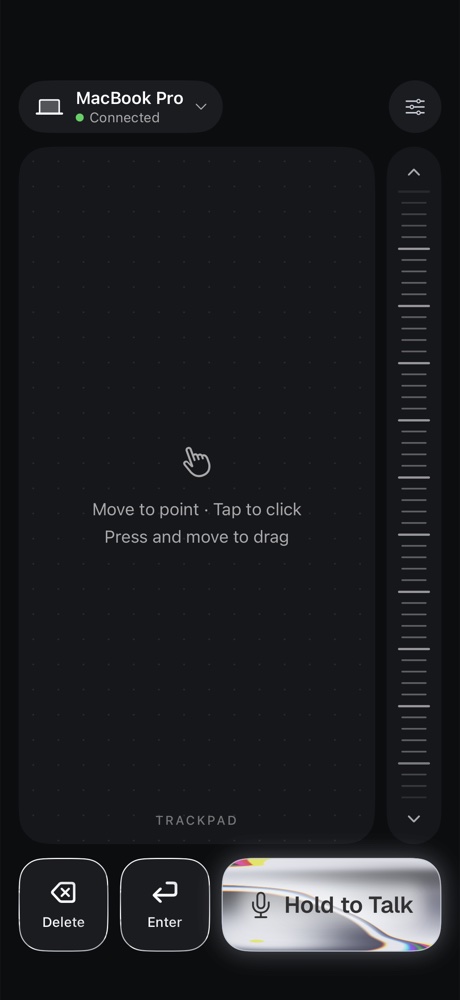
Hold your iPhone close and whisper. Attiva types your words on your Mac. Then use the same iPhone as a trackpad to review and send.
Free for 7 days. Founder price: US$12.99 for life, first 100 only.
The problem
Your laptop mic sits an arm’s length away. To be heard, you raise your voice and lean in. That one gap causes three problems.
01
In an open office or a café, the people around you hear every word you say to the AI.
02
A far-away mic hears the whole room. Coffee grinders and nearby talk end up in your prompt.
03
You talk, then reach for the trackpad to scroll the answer, click, and press Enter. Then you do it again, all day.
The fix
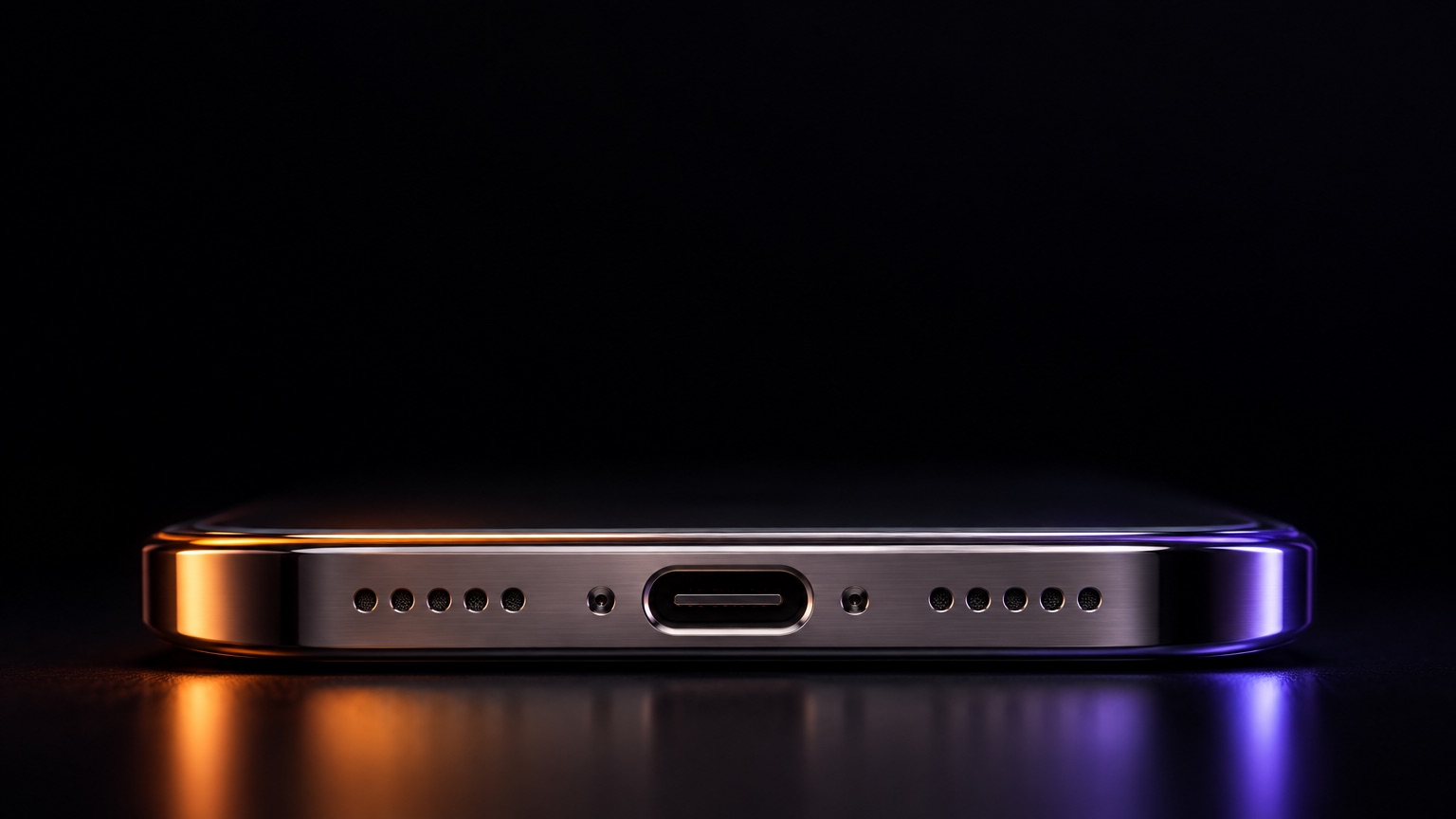
Hold your iPhone close, like you’re recording a voice note. Let go, and your words appear in the prompt on your Mac.
LoudA whisper
Try it
No wake word. No shortcut to learn. One button on your iPhone.
Press and hold the Hold to Talk button on your iPhone.
Speak close to the phone. A whisper is enough.
Your words appear where your cursor is on the Mac.
Mic + remote
Talk, point, scroll, and send. Your hands stay off the keyboard.
01
Hold the button and whisper. See your words live. Let go, and they appear on your Mac.
02
Use the iPhone keyboard to fix one word. Then send.
03
Move, tap, and drag. Use two fingers to right-click and scroll.
04
Swipe to scroll long answers.
05
Delete a word. Send with Enter.
Lean back
Lean back with your iPhone in hand. Talk to write the prompt, glide your thumb to read the answer, and tap to send.
 TalkPress and hold Hold to Talk, then say the prompt in a whisper.
 Point and scrollGlide your thumb like a trackpad to move, click, and read.
 SendTap Enter on your iPhone. Your hands never touch the keyboard.
Works anywhere you type
Attiva types your words where your cursor is. Use it in your AI chat, your code editor, or your docs.
 ChatGPT
 Claude
 Gemini
 DeepSeek
 Kimi
 Perplexity
 Cursor
 VS Code
 Xcode
 Notion
 Google Docs
 Slack
 Linear
 Gmail
Works in any Mac app with a text field.
Who it’s for
Private by design
Your voice turns into text on your iPhone. Only that text travels to your Mac, encrypted, over Bluetooth. No account. No Wi-Fi needed.
Your iPhone
Speech becomes text on the device
Your Mac
Text appears where you type
Speech recognition runs on your iPhone, not on a server.

No sign-up. Every prompt and command sent over Bluetooth is encrypted with a key only your iPhone and Mac share.

You speak softly, so the people near you don’t hear your prompts.
Get set up
Attiva has two parts: the app on your iPhone and a free app on your Mac. You need both. Pair them once, and after that they find each other on their own.
Download it from the App Store. It becomes your mic, trackpad, and scroll wheel.
Download on the App Store →It’s free, sits in your menu bar, and can open at login. Allow Bluetooth and Accessibility, so your iPhone can move the pointer and type for you.
Get Attiva for Mac, free →On your Mac, click the Attiva icon in the menu bar and choose Pair an iPhone. On your iPhone, tap Find my Mac and enter the code. The app guides you, then helps you send your first prompt.
Then hold to talk.Why two apps? Your iPhone hears you and turns your voice into text. Attiva for Mac receives it over Bluetooth and types it where your cursor is. Want to practice first? Open the Practice Pad on your Mac to try talking, editing, clicking, dragging, and scrolling.
Why I built Attiva
“I prompt AI all day. Talking is faster than typing, but dictating to my laptop in the office meant everyone heard me. So I built a way to whisper my prompts instead.”
Pricing
Then keep Attiva for life. The first 100 people pay only US$12.99.
Then pick a plan. Cancel any time.
Founder price · First 100 only
Attiva for life
For iPhone and Mac
US$129.99 one-time · save 90%
MicTrackpad Scroll wheel
Only 100 founder spots. When they are gone, this price ends.
Opens after spot 100
Founders skip all of these. US$12.99 once covers it.
Best value · Save 30%
Annual
US$49.99/ year
About US$4.17 a month.
All 100 founder spots are taken. Thank you, founders.
FAQ
In most rooms, yes. Your iPhone’s mic is right by your mouth, so it hears a quiet voice well. In very loud places, speak a little louder.
A whisper is much quieter than talking to a laptop. People nearby may notice you speaking, but they are unlikely to catch your prompt.
Any app with a text field. Attiva types your words where your cursor is, so ChatGPT, Claude, and others all work.
Attiva uses your iPhone’s language by default. You can pick another language that your iPhone can recognize on the device. The list depends on your iPhone model and iOS version.
No. There is no Attiva account. Your iPhone and Mac connect over Bluetooth, so it works without Wi-Fi.
Your words are safe. Attiva saves them on your iPhone. When your Mac is back, you can edit, copy, or send them again.
Yes. Attiva can also connect through macOS Screen Sharing on your Wi-Fi. You sign in with your Mac account. An optional helper makes the pointer work better across more than one display.
Yes. Liquid Metal is the default look, and there are five other colors. You can set haptics, pointer speed, and scroll speed. You can also put the scroll wheel on the left side.
Yes. Attiva for Mac is free and receives your voice and pointer input over Bluetooth.
No. Speech recognition runs on your iPhone. Only the finished text goes to your Mac, encrypted.
That is Apple’s standard permission text. Attiva asks iOS to recognize speech on your iPhone. Only the finished text goes to your Mac, encrypted over Bluetooth.
Your 7 free days start after you pair your iPhone and tap Start. The first 100 people can then keep Attiva for life for US$12.99. After that, plans are US$5.99 a month, US$49.99 a year, or US$129.99 for life. Got a new iPhone? Tap Restore Purchases.
Get Attiva on iPhone. Install Attiva for Mac to connect.