
Use your iPhone as a mic and trackpad for your Mac
Attiva turns your iPhone into a mic and trackpad for your Mac. Hold it close and talk, and your words appear on your Mac. Then use the same iPhone to point, scroll and send.
Updated 25 November 2026. Steps for macOS 13 Ventura or later.
-
 Attiva · 7-day free trial
Mic and trackpad in your hand
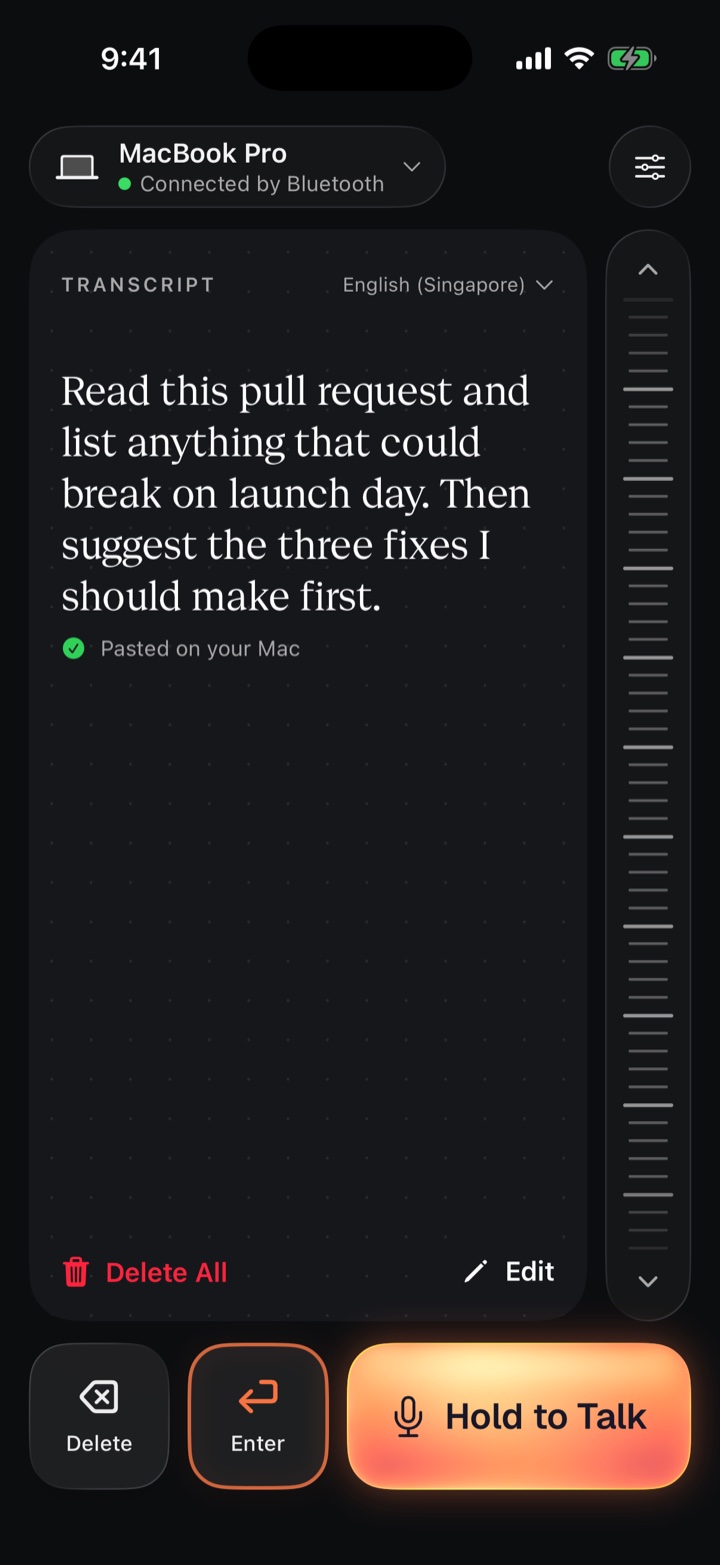
Hold the iPhone close and talk. Your words appear on your Mac. Then use the same iPhone as a trackpad.
See the steps → -
Free alternative · Mic only
Continuity Camera
Your iPhone becomes a sound input for the Mac. It must stand still, in landscape, with the screen off. No trackpad.
Only need a mic? →
Mic and trackpad · Step by step
How to use your iPhone as a mic and trackpad with Attiva
Attiva turns your iPhone into a mic and remote for your Mac. Hold it close, talk or whisper, and your words appear where your cursor is.
-
Step 1 · iPhone
Get Attiva on your iPhone
Download it from the App Store. It needs iOS 18 or later. The first 7 days are free.
-
Step 2 · Mac
Install Attiva for Mac
It’s free and sits in your menu bar. Allow Bluetooth and Accessibility, so your iPhone can type and move the pointer.
Get Attiva for Mac → -
Step 3 · Once
Pair with a 6-digit code
On your iPhone, tap Find my Mac and choose your Mac. Your Mac shows a code. Enter it on your iPhone.
-
Step 4 · Talk
Hold to talk
Click a text field on your Mac. Hold the talk button on your iPhone and speak. Let go, and your words appear.

Private by design: your iPhone turns your voice into text on the device. Only the text goes to your Mac, encrypted over Bluetooth. No account. No Wi-Fi needed.
As a trackpad
How to use your iPhone as a trackpad for your Mac
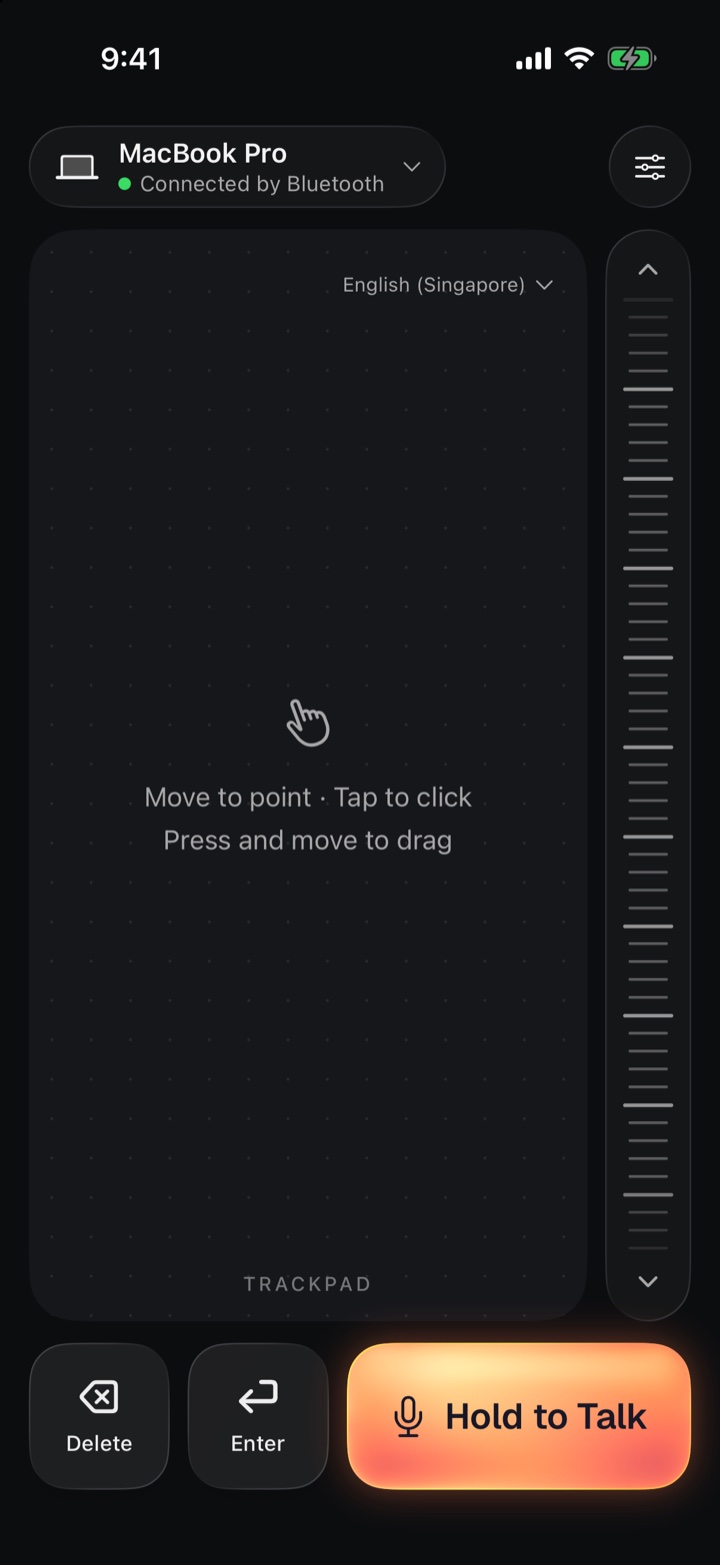
Apple’s Universal Control works between a Mac and an iPad, not an iPhone. To control your Mac from your iPhone, you need an app. With Attiva, the same iPhone you talk into is also your trackpad.
- Move and click. Glide your thumb to move the pointer. Tap to click.
- Drag. Move windows, select text and drop files.
- Two fingers. Right-click, and scroll long answers.
- Send. Tap Enter on your iPhone. Your hands never touch the keyboard.
Want to try it first? Open the Practice Pad from the Attiva menu on your Mac. Practice talking, clicking, dragging and scrolling before you use it for real.
Free alternative · Microphone only
Only need a microphone? Use Continuity Camera
Continuity Camera is free and built into macOS. It turns your iPhone into a camera and microphone for your Mac, but not a trackpad.
-
Check what you have
An iPhone XR or later with iOS 16 or later, and a Mac with macOS 13 Ventura or later. Sign in to the same Apple Account on both.
-
Turn things on
Turn on Wi-Fi and Bluetooth on both devices. On iPhone, turn on Continuity Camera in Settings → General → AirPlay & Continuity.
-
Place your iPhone
Keep it near your Mac, in landscape, still, with the screen off. A stand or mount works best.
-
Pick it as the input
On your Mac, open System Settings → Sound. Under Input, choose your iPhone.
Good to know: the iPhone has to stay still on a stand, so you can’t hold it close to your mouth. Your Mac still does the dictation. And there is no trackpad: you still use your keyboard and mouse. Apple’s guide →
Which to use
Continuity Camera or Attiva?
Use Continuity Camera for video calls with your iPhone on a stand. Use Attiva to dictate and control your Mac with the iPhone in your hand.
| Feature | Continuity Camera | Attiva |
|---|---|---|
| Hold the iPhone in your hand | No Must stand still, in landscape | Yes Hold it close to your mouth |
| iPhone as a trackpad | No | Yes Move, click, drag and scroll |
| Where speech turns into text | On your Mac, with its own dictation | On your iPhone |
| Connection | Wi-Fi and Bluetooth on, same Apple Account | Bluetooth pairing. No account, no Wi-Fi needed |
| Also a webcam | Yes | No |
| You need | iPhone XR or later, iOS 16+, macOS 13+ | iOS 18+, macOS 13+ |
| Price | Free | 7 days free, then from $5.99 a month |
Swipe the table to see both options.
Troubleshooting
Why doesn’t my iPhone show up as a microphone?
- Check that both devices use the same Apple Account, with two-factor authentication.
- Turn on Wi-Fi and Bluetooth on both, and keep them within 10 meters (30 feet).
- Turn off AirPlay and Sidecar on your Mac.
- Still missing? Connect the iPhone with a cable, then restart both devices.
Troubleshooting
Why doesn’t Attiva find my Mac?
- Keep your Mac awake, with Attiva for Mac open in the menu bar.
- Check that Bluetooth is on, and that Attiva has Bluetooth access on both devices.
- If the code expired, your Mac shows a new one. Enter the new code.
- The pointer won’t move? Turn on Attiva for Mac in Privacy & Security → Accessibility.
More help is on the support page.
FAQ
More questions about using an iPhone as a Mac mic
Yes. Continuity Camera is built into macOS 13 and later. Your iPhone must stay still, in landscape, with the screen off.
Not with a built-in Apple feature. Attiva turns your iPhone into a trackpad and scroll wheel for your Mac, and a mic at the same time.
Attiva does. Your iPhone and Mac connect over Bluetooth. Continuity Camera needs Wi-Fi and Bluetooth turned on, unless you connect the iPhone with a cable.
No. Both Continuity Camera and Attiva need a Mac.
Yes. With Attiva you hold the iPhone close to your mouth, so a quiet voice is easier to pick up. That helps in an office or a café.
Try Attiva free for 7 days.
Get Attiva on your iPhone, then the free Attiva for Mac app.