No length limit
- You can dictate text of any length.
- Dictation stops by itself after 30 seconds without speech.
- When Voice Control is on, regular Dictation isn’t available.
 Get the appiPhone: coming soon
Your Mac has free voice to text built in, called Dictation. Turn it on in System Settings → Keyboard → Dictation, click a text field, and press the Microphone key. For long AI prompts in a shared room, you can talk into your iPhone instead.
Updated 25 November 2026. Steps for the latest macOS. Sources

Apple Dictation
Speak into your Mac’s mic. Your words appear where you type. Good for short notes and messages.
How to turn it on → Attiva · 7-day free trial
Your iPhone as the mic
Hold your iPhone close and talk, or whisper. Your words appear on your Mac. Then use the iPhone as a trackpad.
See how it works →Step by step
Turn on Dictation once in System Settings. After that, it works in any app where you can type.
Choose Apple menu → System Settings, then click Keyboard in the sidebar. You may need to scroll down.
Go to Dictation and turn it on. Click Enable if your Mac asks. To add a language, click Edit next to Languages.
Click a text field, for example the message box of an AI chat.
Press the Microphone key, use your Dictation shortcut, or choose Edit → Start Dictation. Then speak.
What is the shortcut? Keyboards with a Microphone key start Dictation with one press. Otherwise, check the Shortcut menu in System Settings → Keyboard → Dictation. You can pick another shortcut there, or choose Customize and press your own keys.
Punctuation
Your Mac adds commas, periods and question marks for you in supported languages. You can turn this off in Keyboard → Dictation → Auto-punctuation. You can also say the punctuation out loud.
On a Mac with Apple silicon, you can keep typing while you dictate. Words your Mac isn’t sure about are underlined in blue. Click one to pick another word.
| Say | You get |
|---|---|
| “question mark” | ? |
| “exclamation mark” | ! |
| “ellipsis” | … |
| “new line” | A line break |
| “new paragraph” | A blank line, then new text |
| “caps on” / “all caps” | Capital letters |
| “no space on” / “no space off” | Words without spaces |
Limits and privacy
There is no length limit, but Dictation stops after 30 seconds of silence. Whether it works offline depends on your Mac and language.
Help
Mic distance
A laptop mic sits about an arm’s length from your mouth. In a café or an open office, it hears the room as well as you. So you talk louder, and the people next to you hear every word.
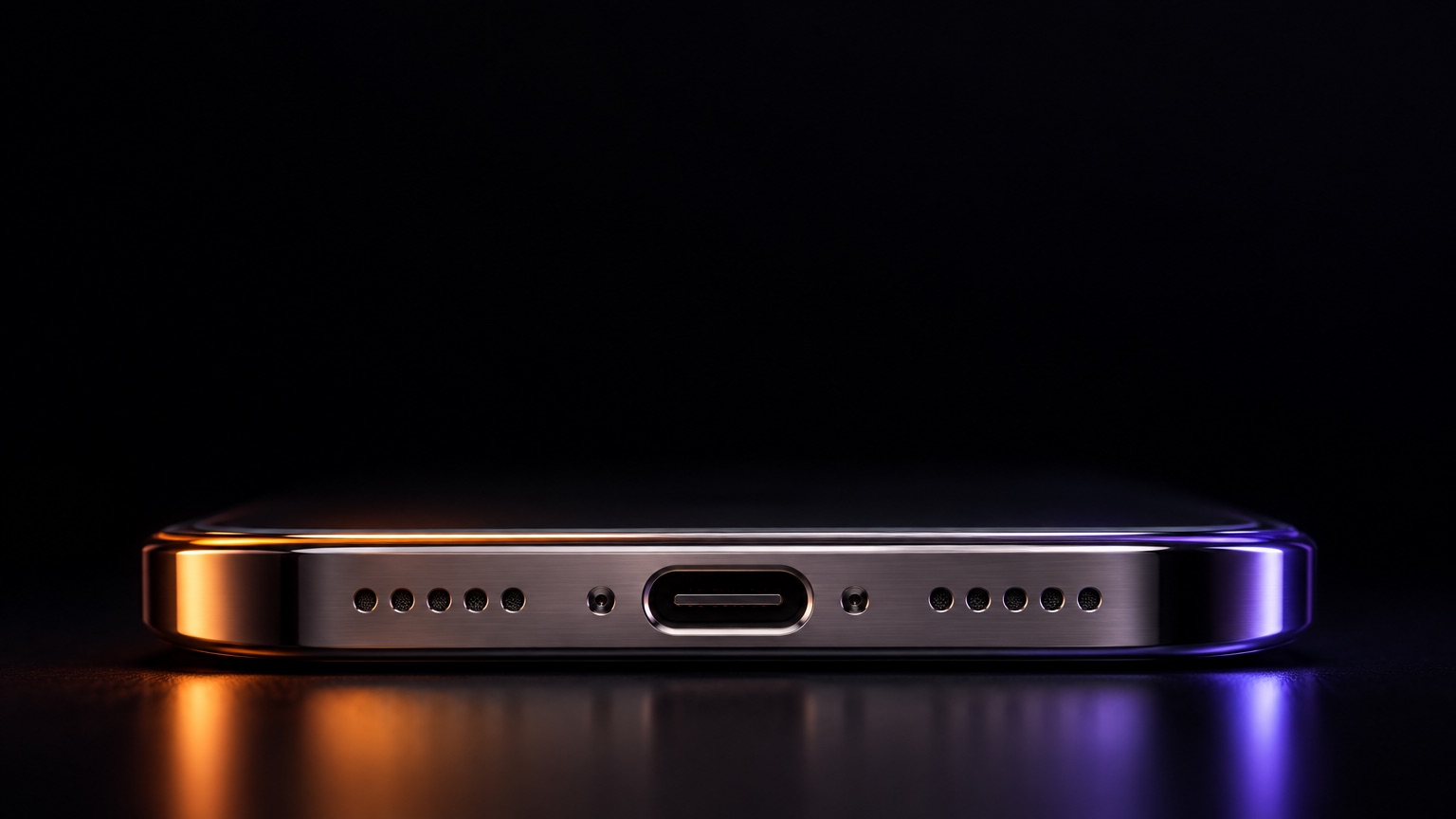
A mic close to your mouth hears your voice over the room, even when you speak quietly. That is the idea behind using your iPhone as the mic.
A quieter way
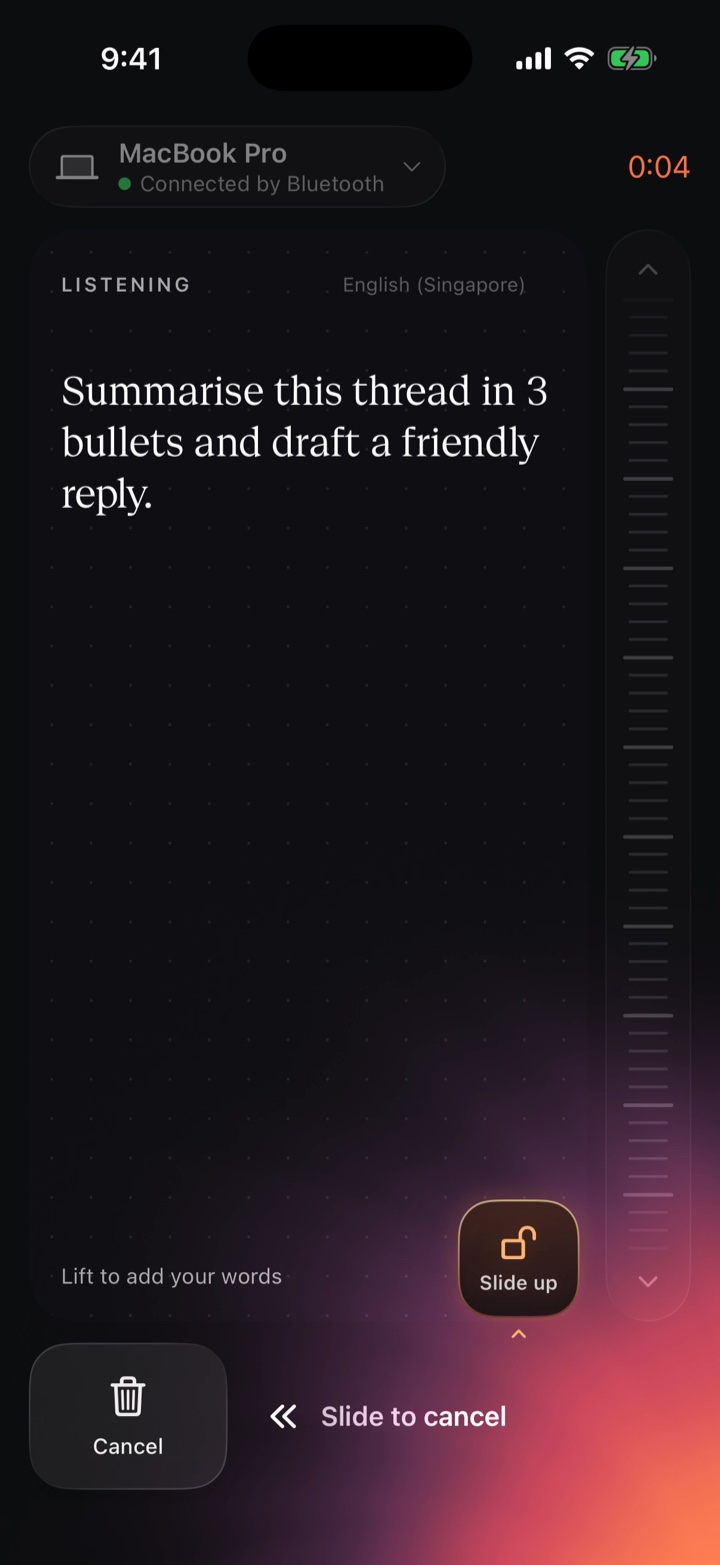
Use your iPhone as the mic. With Attiva, you hold the iPhone close and talk, or whisper. Your iPhone turns your voice into text on the device, and the words appear where your cursor is on your Mac.
Compare
Use Apple Dictation for short notes when you can speak up. Use Attiva for long prompts in a shared room, or when you want to lean back and use the iPhone as a trackpad.
| Feature | Apple Dictation | Attiva |
|---|---|---|
| Where you speak | Your Mac’s mic, or another mic you choose | Your iPhone, held close |
| Whispering | Hard The mic is far away | Yes The mic is by your mouth |
| See words before they paste | No They type straight in | Yes On your iPhone, live |
| Trackpad and scroll | No | Yes On the same iPhone |
| Stops after silence | After 30 seconds | Only when you let go |
| You need | A Mac | An iPhone (iOS 18+) and a Mac (macOS 13+) |
| Price | Free | 7 days free, then from $5.99 a month |
Swipe the table to see both options.
FAQ
Yes. Apple Dictation is built into macOS and costs nothing. Apps like Attiva add features, such as using your iPhone as the mic.
It depends on how you work. Apple Dictation is free and built in. Wispr Flow and Superwhisper add AI cleanup. Attiva uses your iPhone as the mic and trackpad. See Wispr Flow vs Superwhisper vs Attiva.
Yes. Apple’s Continuity Camera can make your iPhone a sound input, but the iPhone must stand still with its screen off. With Attiva, you hold it in your hand. See how to use your iPhone as a mic and trackpad for your Mac.
Dictation stops after 30 seconds without speech. Start it again with the Microphone key or your shortcut. With Attiva, listening stops only when you let go of the button.
Yes. Click the message box first, then start dictating. Your words appear where your cursor is. Attiva works the same way.
Sources
Apple Mac User Guide: Dictate messages and documents on Mac, Commands for dictating text, If Dictation doesn’t work, Use your iPhone as a webcam or microphone.
Apple, Mac, iPhone and macOS are trademarks of Apple Inc. Attiva is not made by Apple. Settings names can change between macOS versions.
Get Attiva on your iPhone, then the free Attiva for Mac app.